PRODUCT
Data Store, Data Schemas & Sources.
Define, store and query data.
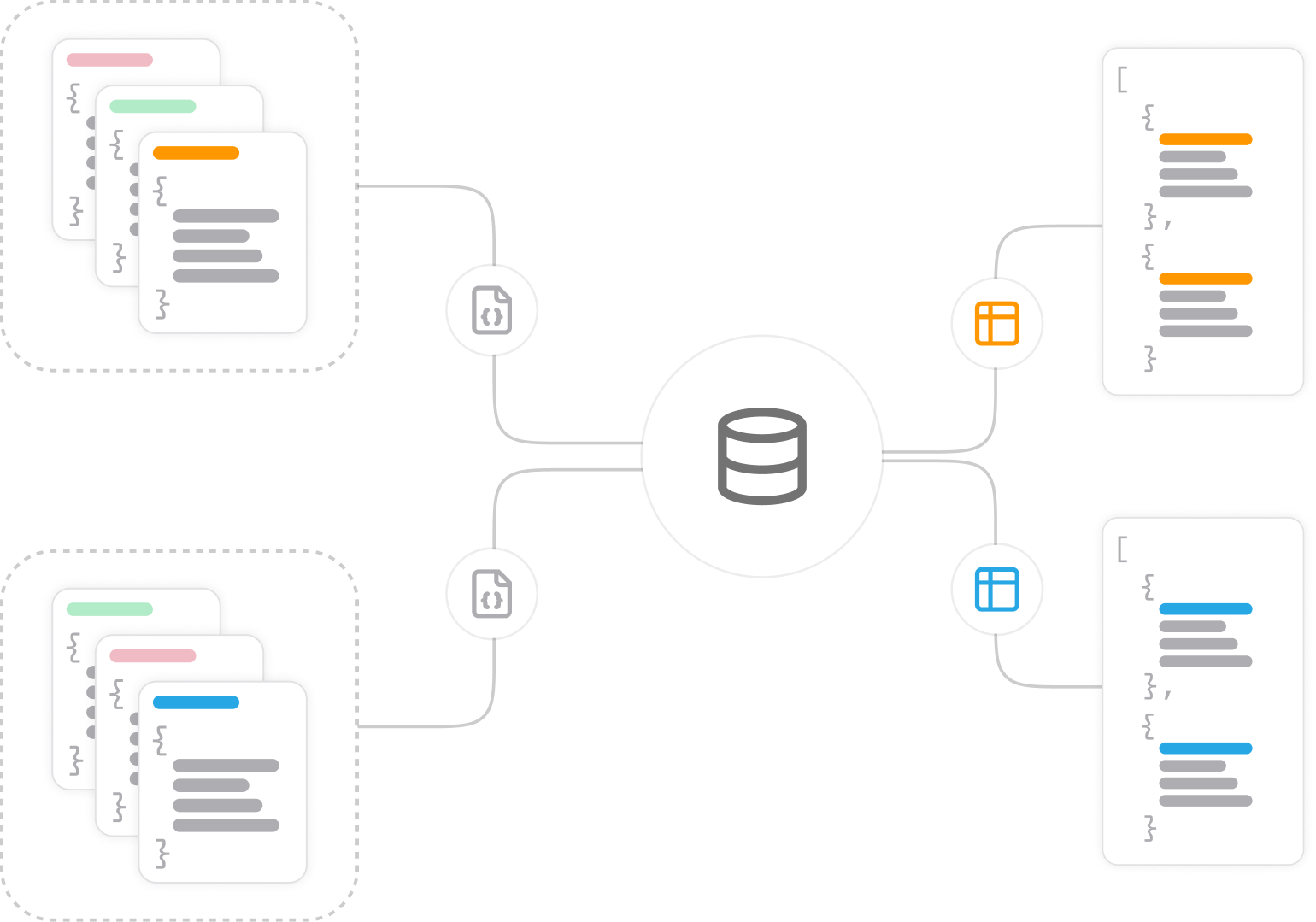
The EMS includes a data layer made up of Data Schemas, the Data Store, and Sources. Together they provide a consistent way to store, validate, query, and react to data — fully integrated into the graph.
Data schemas.
Schemas define the structure of your data. They are expressed as JSON Schema and live on nodes in the graph.
→
Schemas enforce typing and validation, ensuring every Data Item has the fields it should.
→
They can be versioned — the recommended approach is to publish new schema versions with updated URLs.
{
"$id": "https://schemas.doors.tech/content/movie-1.0.json",
"type": "object",
"title": "Movie",
"$schema": "http://json-schema.org/draft-07/schema#",
"required": [
"id",
"title",
"releaseYear"
],
"properties": {
"id": {
"type": "string",
"format": "uuid",
"description": "Unique identifier"
},
"cast": {
"type": "array",
"items": {
"$ref": "https://schemas.doors.tech/content/person-1.0.json"
}
},
"title": {
"type": "string",
"description": "Movie title"
},
"genres": {
"type": "array",
"items": {
"enum": [
"Drama",
"Comedy",
"Action",
"Documentary",
"Other"
],
"type": "string"
}
},
"poster": {
"type": "string",
"format": "uri",
"description": "Poster image URL"
},
"isPremium": {
"type": "boolean",
"description": "If true, requires subscription or purchase"
},
"releaseYear": {
"type": "integer",
"description": "Year of release"
},
"durationMinutes": {
"type": "number",
"description": "Duration in minutes"
}
}
}
Data items.
A Data Item is a JSON document that references a Data Schema via $schema. Each item must conform to its schema, keeping data consistent.
Ways to create Data Items:
→
Via Workflow — use the “Upsert Data Item” action.
→
Via API — send a POST request with an array of JSON documents (batch add).
→
Manually — fill out a form or write JSON directly.
{
"id": "3e6a0c42-6f1f-4e0e-9b9a-23b6f9e8d9ab",
"cast": [
{
"id": "6f5f2d12-1e9c-4f71-9d9e-0a8c7d94db3c",
"name": "Amira Solberg",
"role": "Director",
"$schema": "https://schemas.doors.tech/content/person-1.0.json"
},
{
"id": "0e8a13f9-4a91-44af-84ac-2f90870c8b02",
"name": "Liam Ortega",
"role": "Actor",
"$schema": "https://schemas.doors.tech/content/person-1.0.json"
}
],
"title": "The Endless Horizon",
"genres": [
"Drama",
"Action"
],
"poster": "https://cdn.doors.tech/media/movies/the-endless-horizon/poster.jpg",
"$schema": "https://schemas.doors.tech/content/movie-1.0.json",
"isPremium": true,
"releaseYear": 2024,
"durationMinutes": 118
}
*Very simple example.
Sources.
A Source is how you query Data Items. Each Source is defined by a filter and optional parameters, and is backed by a database index for very fast retrieval.
Ways to create Data Items:
→
Filter: defines the base set of items (e.g. all items with schema = Movie, or all movies with popularity > 80).
→
Parameters: allow refinement at query time (e.g. categories, language, country). This makes Sources reusable: one Source can serve many queries by applying different parameters.
Reading Sources
To use a Source, you call it from a Workflow using a “Read Source” action.
The action outputs:
→
Items: the actual results.
→
Metadata: built-in pagination values such as next cursor, previous cursor, and total count.
You decide what a Workflow ultimately returns. A “Read Source” step can be combined with other steps (API calls, transformations, etc.) to return a completely new format to applications or external systems.
Source Triggers
Sources can also react to change. By attaching Triggers, you can run Workflows automatically when items in a Source are created, updated, or deleted.
Examples:
→
When new Data Items are added.
→
When Data Items change category or popularity threshold.
→
Sync updates to external systems (e.g. a search index) whenever Data Items change.